Unblur Video Online: Make Blurry Videos Clearer
Fix soft, low-resolution and compressed footage with AI. Upload your clip, choose the part you want, and download a sharper HD version.
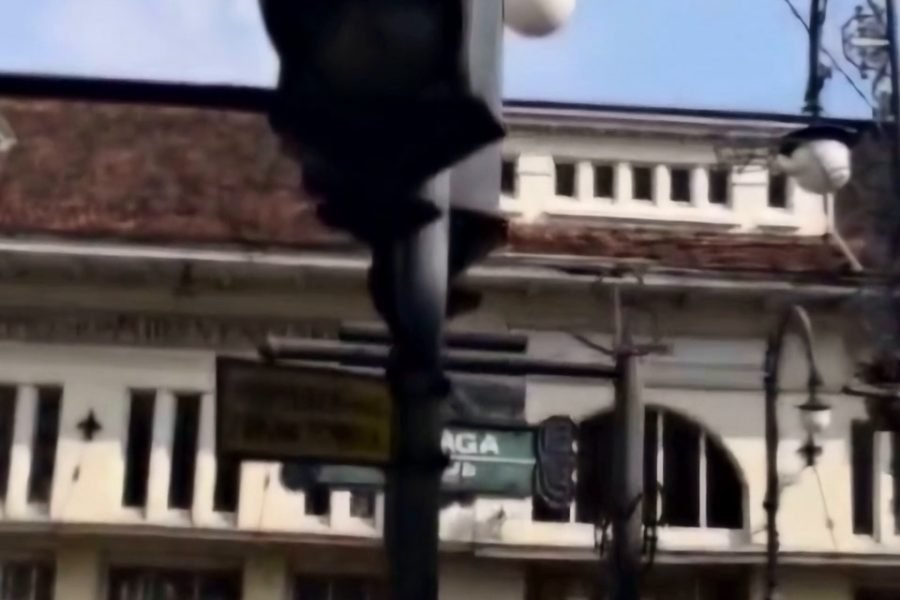
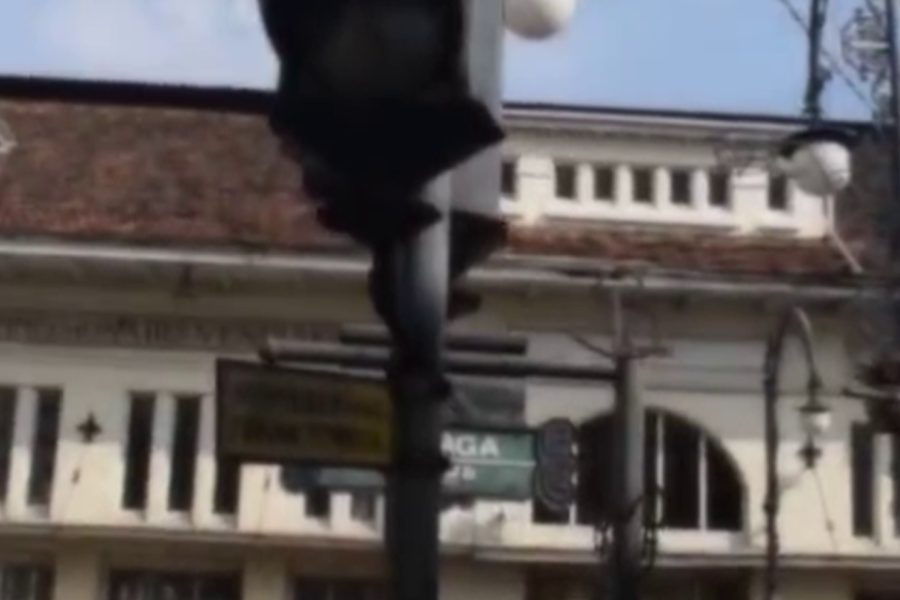
A street clip softened for this demo, then repaired with Best Quality AI. Sample video: Jeromi Mikhael, CC0.
Which kinds of blur can AI fix?
| Type of blur | What to expect |
|---|---|
| Low-resolution softness (240p to 480p) | Big improvement |
| Compression smear from apps and downloads | Big improvement |
| Slightly out of focus | Some improvement |
| Fast motion blur | Little improvement |
| Completely out of focus | Little improvement |
Blur is lost information. AI can predict a sharp edge when enough of the shape is still there, but it cannot recover a face or a number plate that the camera never captured clearly. For people, turn on Fix blurry faces: a face AI draws a clear face where the video is soft. That detail comes from the AI, not from your video, so very small faces may not look exactly like the real person.
How to tell what caused the blur
Pause your video on a frame and look closely. The cause tells you how much AI can help.
- Everything is evenly soft: low resolution or a slight focus problem. AI helps.
- Square blocks or smeared patches, mostly in dark areas: compression. AI helps a lot.
- The background is sharp but a moving person is streaked: motion blur. AI helps only a little.
- Everything is one soft glow with no edges at all: badly out of focus. AI cannot rebuild it.
Why cleaning comes before sharpening
Sharpening a noisy video makes the noise louder. So this tool first removes noise and compression by comparing neighbouring frames, and only then rebuilds the edges with AI. The final sharpening is adaptive: strong on real edges, and gentle on flat areas such as walls, sky and skin.
How to get the clearest result
- Pick the part of the video where the camera is steadiest.
- Upload the original file, not a screen recording or a forwarded copy.
- Keep Best Quality AI selected for the cleanest detail.
- Choose 5 seconds if you want the highest quality from the same wait.
- Switch to the Natural look if Reels HD feels too strong for your clip.
Frequently asked questions
Can AI remove motion blur completely?
No. Strong motion blur smears the picture across many pixels and the original shapes are lost. The tool can clean the rest of the frame, but a fast-moving object will stay soft.
Will the AI change people's faces?
Not by default. We tested many AI models on small faces and rejected the ones that changed how people look, so a very small face stays soft instead of turning into someone else. If you turn on Fix blurry faces, a separate face AI rebuilds eyes, skin and hair. Faces become much clearer, but the new detail is drawn by the AI, so compare the result with your original.
Can it make a number plate or small text readable?
Large text usually becomes clearer. Small text and number plates usually cannot be recovered, and the result should not be used as evidence.
Is this the same as a sharpen filter?
No. A filter only boosts edges that already exist, including noise. This tool removes noise first and uses AI to rebuild edges.
Why does my result look a little painted?
That can happen on very heavily compressed clips, where little real detail is left. Try the Natural look, or start from a better copy of the video.
Who can see my video?
Your video is not published anywhere. Our team may review uploads and results to improve this tool. They are deleted automatically after 7 days, and your download link works for 3 hours. Please do not upload private or sensitive videos.