AI Video Enhancer: Make Blurry Videos Sharp and HD
Upload a low-quality clip. Our AI cleans compression noise, rebuilds detail and blurry faces, fixes dull light and colour, and gives you a sharp HD, 2K or 4K video, even at a smooth 60 fps.
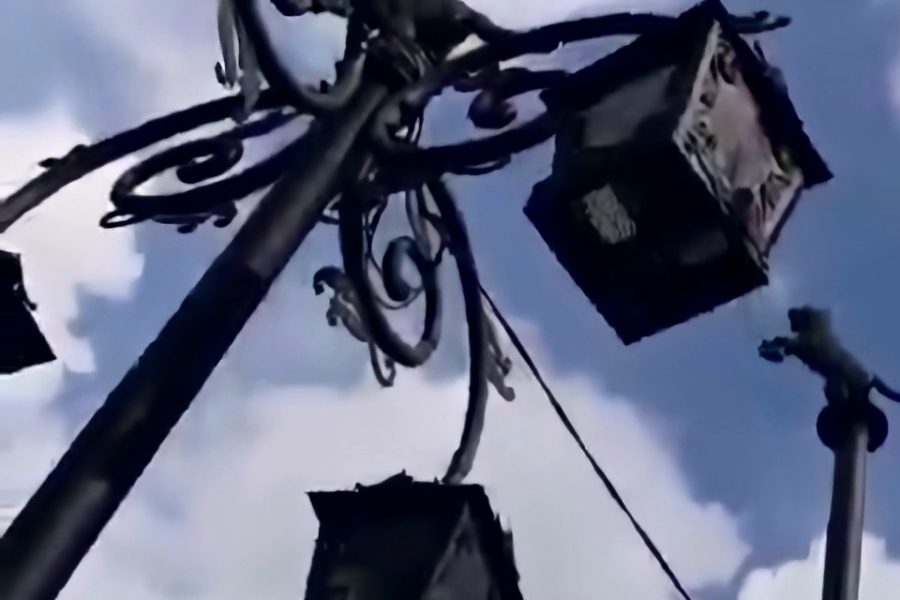
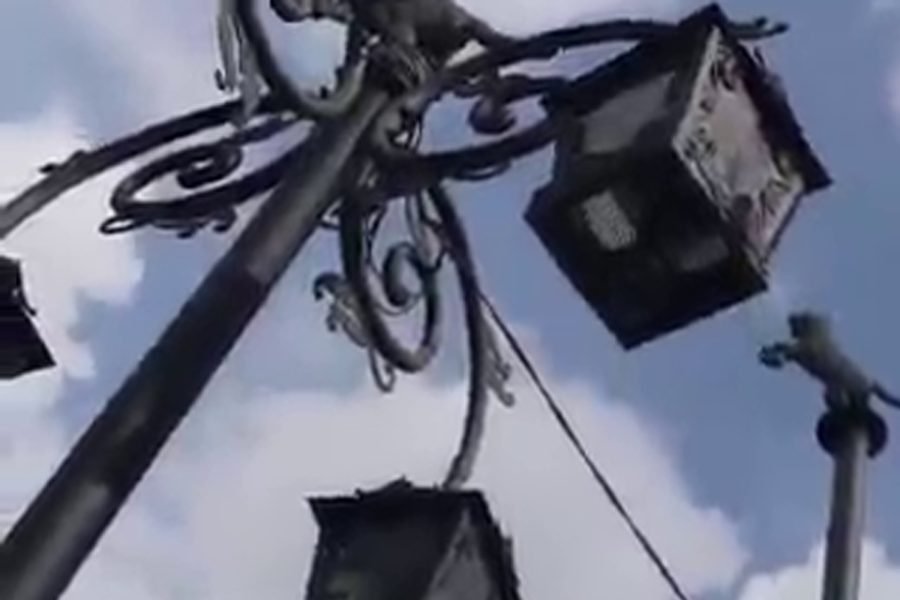
A street clip reduced to 360p, then enhanced with Best Quality AI and the Reels HD look. Sample video: Jeromi Mikhael, CC0.
Pick the right tool for your video
Every video has a different problem. These pages open the same AI with the best settings already chosen for that kind of clip.
- WhatsApp Video EnhancerFix blurry, blocky forwards
- Instagram Reels EnhancerSharp 1080 x 1920 Reels
- Unblur VideoClear up soft footage
- Restore Old VideosOld phone and family clips
- Anime Video UpscalerClean lines for cartoons
- Video Upscaler240p or 480p to 1080p, 2K, 4K
How the AI enhances your video
Most online enhancers only apply a filter. This tool studies your clip first, then uses neighbouring frames to remove compression noise, and runs an AI model on the frames to rebuild sharp edges and detail. A second AI looks at your video and sets its light and colour, so dark or dull clips open up. Finally it adds the look you chose and exports a clean MP4 with your sound.
It works best on clips under 720p, such as old phone videos, WhatsApp forwards and low-quality downloads. Videos that are already HD mainly gain cleaner detail and better colour.
Which mode should you choose?
| Mode | Best for | Longest result | 10 second result |
|---|---|---|---|
| Fast AI | Most videos. Natural faces. | 30 seconds | About 1 to 4 minutes |
| Best Quality AI | Badly compressed clips. Cleanest detail. | 30 seconds | About 4 to 6 minutes |
| Cartoon & Anime AI | Animated videos only. Very clean lines. | 30 seconds | About 2 to 5 minutes |
| Quick Enhance | A whole status or Reel. Cleans, sharpens and corrects colour, without AI upscaling. | 60 seconds | About 1 minute |
A longer result takes longer: 30 seconds with Fast AI needs roughly 6 to 10 minutes. The page shows the time for your video before you start, and you can lock your phone while it works.
More than an upscaler
- Fix blurry faces. Turn on this AI extra and a face AI rebuilds eyes, skin and hair on small or blurry faces. It keeps each face steady from frame to frame, so faces do not flicker. It works with Fast AI and Best Quality AI and adds a few minutes.
- Smooth motion (60 fps). The AI creates a new frame between every two frames, so a 30 fps clip plays at 60 fps. Fast moves, such as a swinging arm, get extra help from a second AI so they look less doubled. It works for results up to 30 seconds.
- HD, 2K or 4K. Choose the output size under More options. 2K results are up to 20 seconds and 4K up to 10 seconds, because those frames are much heavier.
- AI colour. Light and colour are set for your video, and dark clips are brightened. Choose the Natural look to keep the colours close to how they were shot.
- Stabilize. Smooths hand shake. If a clip moves too fast to be stabilized safely, the tool leaves the camera path as it is.
- Clean sound. Reduces background hiss and evens out the volume. It is made for speech, so leave it off for music.
Frequently asked questions
Is the AI video enhancer free?
Yes. It is free and needs no sign-up, and the video has no watermark. Because AI needs a lot of computing power, the free version enhances up to 30 seconds of your video at a time, or up to 60 seconds with Quick Enhance.
How long does it take?
Usually one to six minutes for a 10 second result, and longer for 20 or 30 seconds. Fix blurry faces and Smooth motion add a few minutes each. The time depends on the mode, your video size and how many people are in the queue. The page shows an estimate before you start and live progress after.
Can it fix blurry faces in a video?
Yes. Turn on Fix blurry faces under AI extras, with Fast AI or Best Quality AI. A face AI rebuilds eyes, skin and hair on faces that are small or blurry, and large faces that are already sharp are left almost as they are. The AI draws the new detail from what it has learned, so a face that is only a few pixels wide may not look exactly like the real person.
Can it make my video 60 fps?
Yes. Turn on Smooth motion (60 fps) under AI extras. The AI creates a new frame between every two frames, so a 30 fps video becomes 60 fps, and a 24 or 25 fps video plays at 48 or 50 fps. It works for results up to 30 seconds. At a scene cut the tool repeats a frame instead of mixing two different shots.
Why does my phone not get slow?
All the heavy AI work runs on our server. Your phone only uploads the part you selected.
Can AI make any video look like 4K?
You can export in 4K, and the AI rebuilds edges and texture as it enlarges the picture. It cannot recover detail that was never recorded, so a clearer original always gives a better result, and a very small video will not look like true 4K.
Who can see my video?
Your video is not published anywhere. Our team may review uploads and results to improve this tool. They are deleted automatically after 7 days, and your download link works for 3 hours. Please do not upload private or sensitive videos.